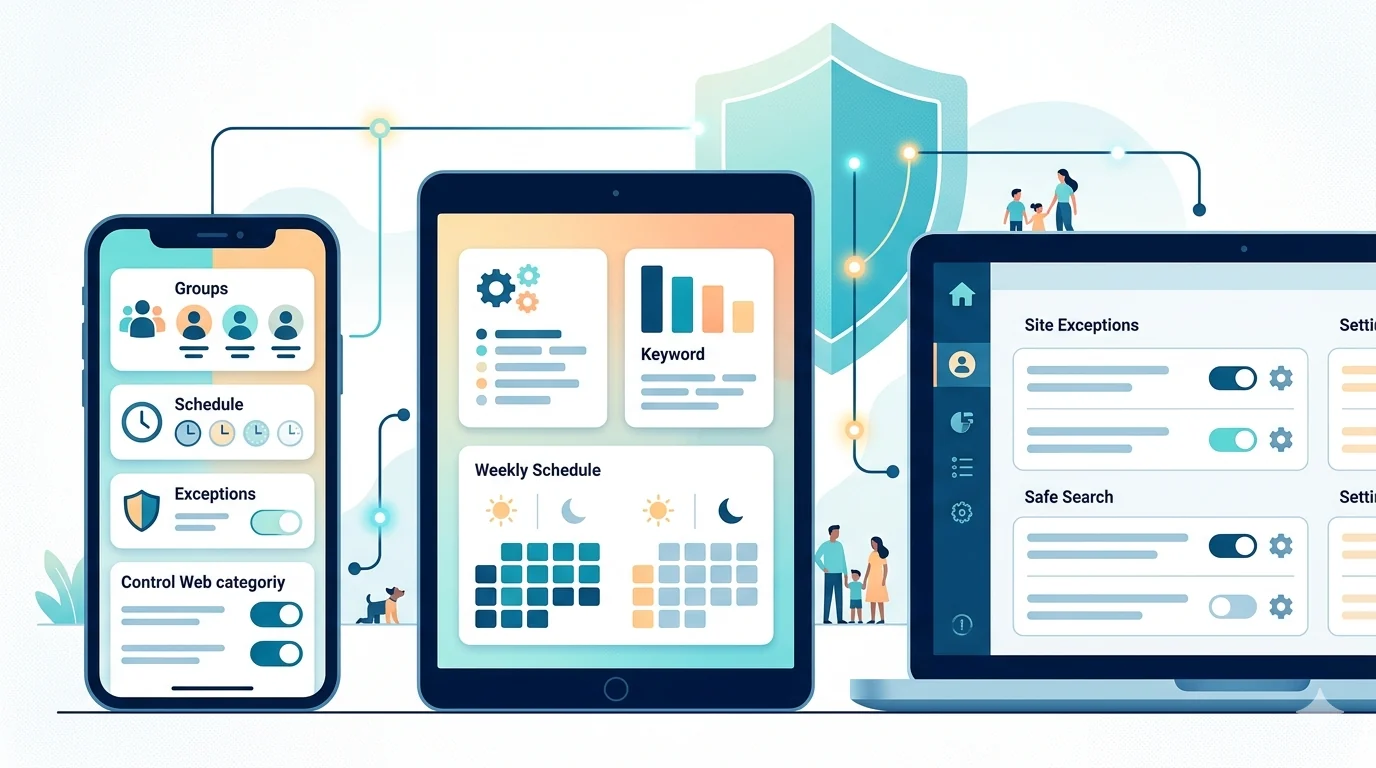
Family internet safety is no longer about blocking half the web and hoping for the best. Kids need online access for school, communication, and creativity. The better strategy is layered controls: keyword blocking, profanity filtering, scheduling, and smart exceptions.
Why Keyword Blocking Is the Foundation
Keyword blocking is flexible enough for real life. Instead of banning entire websites, you can remove specific risky patterns across many pages at once.
- Protect younger kids from explicit language and themes
- Reduce exposure to aggressive comment culture
- Control trend-driven topics that are not age-appropriate
- Keep useful educational content accessible
A 5-Layer Family Safety Setup
- Core profanity list enabled by default.
- Age-specific keyword groups for each child profile.
- Scheduled stricter filtering during school and homework hours.
- Site exceptions for trusted classroom tools and homework resources.
- Monthly review and refinement based on filter stats.
How to Set Rules by Age Group
One list for every child usually fails. Better approach:
- Elementary: strict profanity and explicit-topic filters
- Middle school: balanced filtering with educational exceptions
- Teens: more transparency, less rigidity, and shared review
As kids get older, conversation and digital literacy should increase alongside technical controls.
How to Keep Privacy in a Family Setup
Choose tools that process filtering locally where possible. Parents should be able to protect children without turning family browsing into constant tracking.
A privacy-first setup builds trust and is easier to sustain long-term.
Common Mistakes That Break Family Filtering
- Overblocking entire websites instead of using targeted rules
- Never updating keyword lists as slang evolves
- Ignoring schedule controls and forcing strict mode 24/7
- Skipping exceptions for school resources
Weekly and Monthly Maintenance Routine
Weekly: review top blocked terms and check for false positives.
Monthly: update keyword groups, adjust schedules, and discuss online experiences with your child.
Light ongoing maintenance beats one heavy setup that becomes outdated.
Keyword Group Ideas for Parents
- Profanity and insult clusters
- Sexual and explicit slang
- Violent terms
- Scam and manipulation language
Build a Family Digital Agreement Alongside Filters
Technical controls work better when paired with shared rules everyone understands. A simple family agreement can cover:
- What to do when harmful content appears unexpectedly
- How to request changes to blocked topics
- When and where devices are used (for example, homework zones vs bedtime)
This lowers conflict because rules are explicit and collaborative, not mysterious.
When to Loosen Controls as Kids Mature
Strong controls are useful early, but long-term safety also requires judgment skills. A practical progression is to gradually reduce strictness while increasing transparency and discussion.
- Start with strict defaults for younger children.
- Introduce exceptions with explanation, not silent changes.
- For teens, shift toward co-managed filtering and periodic review.
The goal is not permanent restriction. The goal is healthy digital independence over time.
Final Take
Internet safety for families works best when it is practical, adaptive, and privacy-conscious. Keyword blocking plus scheduling and exceptions gives parents strong control without breaking the web for kids.
If you need a dedicated language-focused setup, read How to Set Up a Profanity Filter to Protect Your Kids Online.
Filter Everything Online helps families create safer browsing with keyword groups, profanity filtering, schedules, and site-specific exceptions that stay usable.
Need a related setup? Read How to Set Up a Profanity Filter to Protect Your Kids Online.
Try It Now